How to export trip history from Suzuki Connect
Suzuki Connect records every trip: the time, distance, average fuel consumption and where it started. The app lets you download that history as a CSV file, one month per file. Here is how, step by step, and how to read what is in the file.
Instructions for the Suzuki Connect app on iPhone, checked against exports from 2024–2026.
Export in four steps
Four steps in the phone app. One export covers one month, so the first time round it is worth grabbing a few months back - Nenpi merges them into a single history anyway.
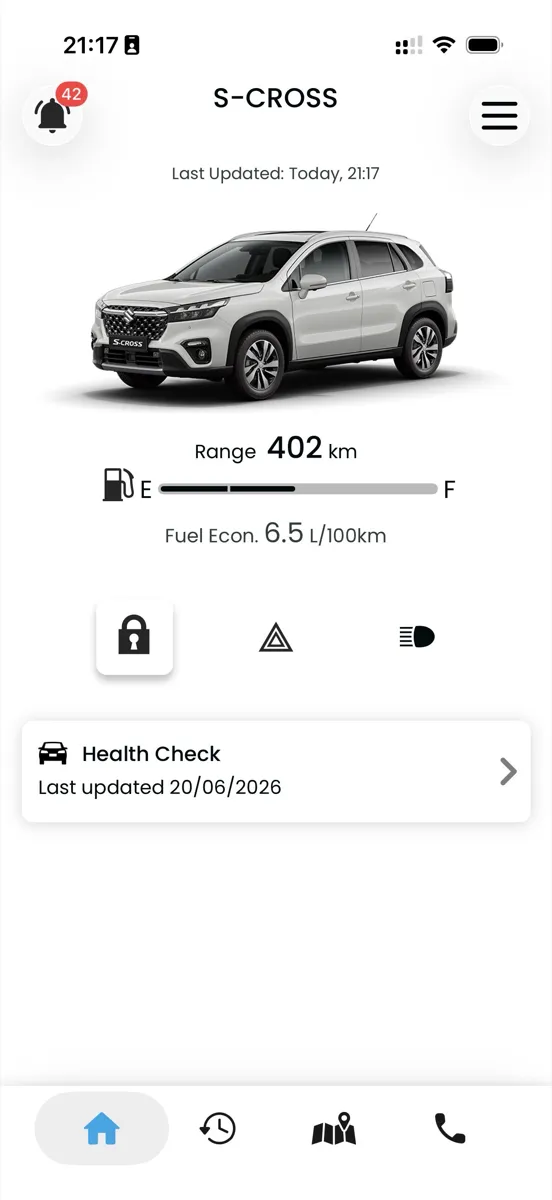
1. Open the driving history
In the bottom bar of Suzuki Connect tap the second icon from the left - the clock with an arrow. The screen is called “Driving History”.
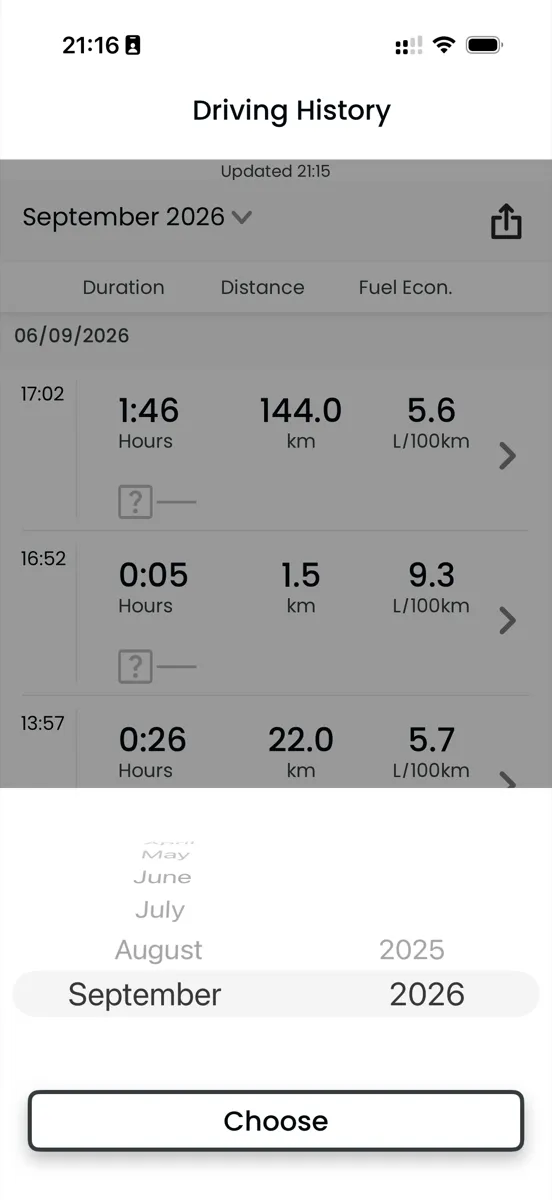
2. Pick the month
Tap the month name at the top of the screen, set the month and the year on the wheels and confirm with “Choose”.
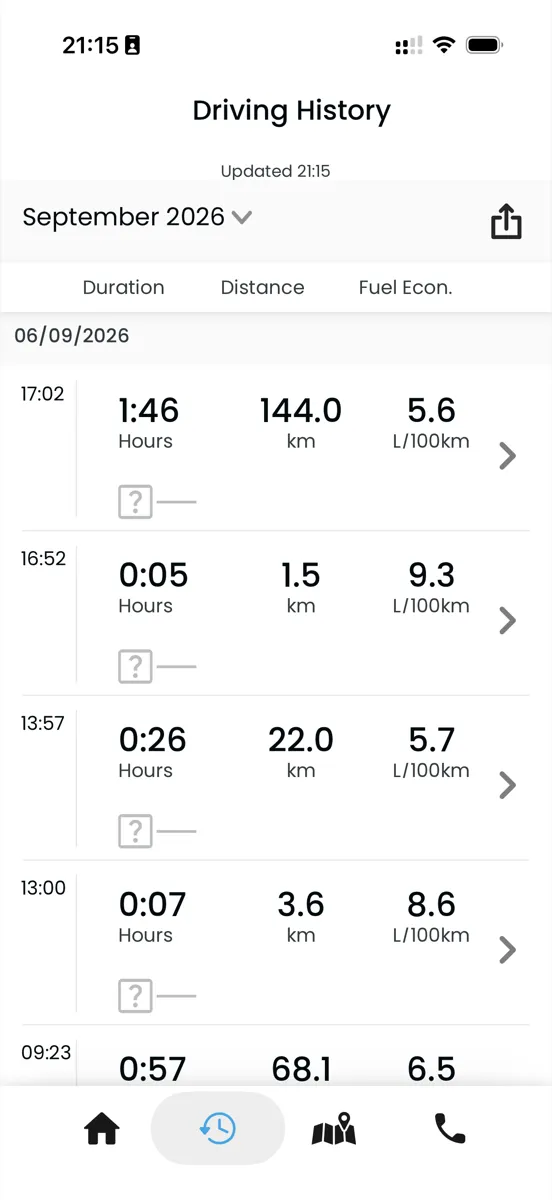
3. Tap the share icon
The icon sits in the top right corner, level with the month name. It is the one that prepares the CSV file for the month on screen.
4. Save the file on your phone
In the share sheet pick “Save to Files” or e-mail the file to yourself. It is called YYYY-MM_trip_history.csv - that is exactly the file you upload to Nenpi.
The screenshots come from an iPhone. On Android the layout may differ slightly, but the items are named the same.
What is in the file
The file is named YYYY-MM_trip_history.csv, for example 2026-08_trip_history.csv, and contains only that month’s trips, one row per trip. The columns:
- start and end date and time, with the time zone (for example CEST (UTC+02:00)),
- trip duration (hours:minutes),
- odometer at the start and end, and the distance in kilometres to one decimal place,
- average fuel consumption of the trip in l/100 km, or in km/l in exports from some countries,
- start and end location: coordinates and a Google Maps link,
- purpose and driver, which in practice are nearly always “Undefined” and “Unknown”.
The first line of the file, verbatim:
"Start Date";"Start Time";"End Date";"End Time";"Time Zone";"Duration of Trip";"Start ODO(km)";"End ODO(km)";"Distance(km)";"Fuel Consumption(L/100km)";"Start URL";"Start Lat/Lon";"End URL";"End Lat/Lon";"Purpose";"Driver"Mind the coordinates
The file contains the coordinates of the start and end of every trip, which in practice means your home and work addresses. Do not paste the whole file into a forum or group when asking for help: the first line, the one with the column names, is enough. Before sharing the full file with anyone, delete the Start URL, Start Lat/Lon, End URL and End Lat/Lon columns.
When importing, Nenpi reads these columns only to check the shape of the file and discards their values: the database has no place for them.
How to open the file in a spreadsheet
- Columns are separated by a semicolon, or by a comma in exports from September 2026 on. Numbers then use a decimal comma (4,0) or a dot (3.9).
- If Excel puts everything in one column, use Data, then From Text/CSV, and choose the separator.
- Google Sheets: File, then Import; it detects the separator itself.
- Some exports, for example from Italy, have dates as DD/MM/YYYY and consumption in km/l. To get l/100 km, divide 100 by the km/l value.
Several months at once
One export is one month. For a longer history, pick each earlier month in turn and save a separate file for each. A file downloaded twice may be saved with (1) added to its name; the content is the same.
Nenpi merges the uploaded files into one history, and a trip uploaded twice counts once. It does not connect to Suzuki Connect or ask for its password. This is what such data looks like after two and a half years:
Check it on your own car
Nenpi shows the same tables from your own Suzuki Connect exports: the average, the seasons, consumption against speed and short trips. You upload a file you download yourself - no link to your Suzuki account.